Biometric authentication has become a standard feature in modern mobile applications, providing users with a secure and convenient way to access their accounts. This authentication method uses unique biological characteristics such as fingerprints, facial recognition, or iris scans to verify a user's identity. In Flutter applications, implementing biometric authentication enhances security and improves user experience by eliminating the need to remember complex passwords. This guide will walk you through the complete implementation process, from setting up dependencies to creating a fully functional login page with biometric login support.
Explore more advanced Flutter development approaches by learning from our Flutter app development company.
Why Biometric Authentication Matters?
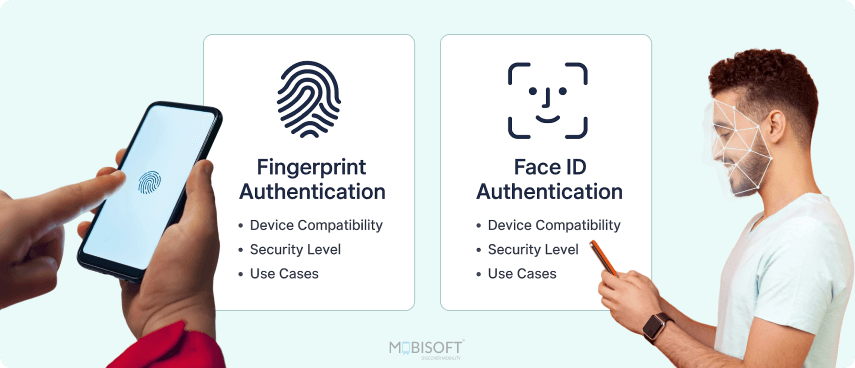
Biometric authentication offers several significant advantages over traditional password-based systems. First, it provides enhanced security since biometric data is unique to each individual and cannot be easily replicated or stolen like passwords. Second, it offers a superior user experience by allowing quick and seamless access to applications with just a touch or glance, making it easier to incorporate options such as biometric verification when needed. Third, it reduces the risk of password-related security breaches, as users don't need to store or remember passwords. Finally, it helps applications comply with modern security standards and user expectations, making your app more competitive in today's market. By implementing biometric authentication, you're not just adding a feature, you're investing in your application's security and user satisfaction.
If you're building secure mobile workflows, our mobile app development company insights can guide your architecture choices.

Step 1: Setting Up the Project
Before we begin implementing biometric authentication, we need to set up a Flutter project and add the necessary dependencies commonly used in Flutter biometric authentication workflows. If you haven't created a Flutter project yet, you can do so using the Flutter CLI:
```bash
flutter create biometrics_poc
cd biometrics_poc
```
Step 2: Adding the Required Dependency
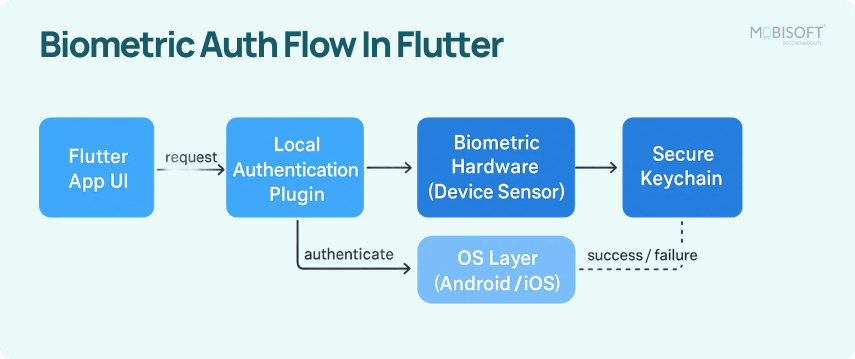
The first step in implementing biometric authentication is to add the local_auth package to your project. This enables fingerprint and facial recognition integration, including support for Flutter fingerprint login where available. This package provides the necessary APIs to interact with the device's biometric authentication system.
Open your pubspec.yaml file and add the `local_auth` dependency under the dependencies section:
```
 local_auth: ^3.0.0
```
After adding the dependency, run the following command to install it:
```
flutter pub get
```
The local_auth package is an official Flutter plugin that provides a simple API for authenticating users using biometrics on both Android and iOS platforms. You can strengthen your architecture by partnering with an experienced software development company.
Step 3: Configuring Android Permissions
For Android devices, we need to add the necessary permissions to the AndroidManifest.xml file. These permissions allow the app to use biometric authentication features.
Navigate to android/app/src/main/AndroidManifest.xml and add the following permissions inside the `<manifest>` tag:
```xml
<uses-permission android:name="android.permission.USE_BIOMETRIC" />
<uses-permission android:name="android.permission.USE_FINGERPRINT" />
<uses-feature android:name="android.hardware.fingerprint" android:required="false" />
```
The first permission (`USE_BIOMETRIC`) is for modern biometric authentication methods, while the second (`USE_FINGERPRINT`) is for older fingerprint-based authentication. The `uses-feature` tag indicates that the fingerprint hardware is optional, meaning your app will still work on devices without fingerprint sensors.
If you’re integrating additional features, check our guide on Flutter Bluetooth BLE integration.
Step 4: Configuring iOS Permissions
For iOS devices, we need to add a usage description for Face ID or Touch ID in the Info.plist file. This ensures consistent behavior when implementing Face authentication Flutter for supported devices. This description is shown to users when the app requests biometric authentication permission. Navigate to `ios/Runner/Info.plist` and add the following key-value pair:
```xml
<key>NSFaceIDUsageDescription</key>
<string>Authenticate to continue.</string>
```
This description will be displayed to users when they first use biometric authentication, explaining why your app needs access to Face ID or Touch ID. To streamline user flows on iOS, explore our Flutter deep linking tutorial.
Step 5: Creating the Biometric Helper Class
Create a new file lib/helpers/biometric_helper.dart to encapsulate all biometric-related functionality. This helper class will handle device capability checks, biometric type detection, and authentication.
```dart
import 'package:local_auth/local_auth.dart';

class BiometricHelper {
 final LocalAuthentication _localAuth = LocalAuthentication();

 Future<bool> isDeviceCapable() async {
   try {
     return await _localAuth.isDeviceSupported();
   } catch (e) {
     return false;
   }
 }

 Future<bool> isBiometricEnabled() async {
   try {
     final availableBiometrics = await _localAuth.getAvailableBiometrics();
     return availableBiometrics.isNotEmpty;
   } catch (e) {
     return false;
   }
 }

 Future<String?> getBiometricType() async {
   try {
     final availableBiometrics = await _localAuth.getAvailableBiometrics();
     if (availableBiometrics.isEmpty) return null;

     if (availableBiometrics.contains(BiometricType.face)) {
       return 'Face ID';
     } else if (availableBiometrics.contains(BiometricType.fingerprint)) {
       return 'Touch ID';
     }
     return null;
   } catch (e) {
     return null;
   }
 }

 Future<bool> authenticate(String reason) async {
   try {
     return await _localAuth.authenticate(
       localizedReason: reason,
     );
   } catch (e) {
     return false;
   }
 }
}
```
Let's break down each method:
- isDeviceCapable(): This method checks if the device hardware supports biometric authentication. It returns `true` if the device has the necessary hardware, regardless of whether biometrics are set up.
- isBiometricEnabled(): This method checks if biometric authentication is actually enabled and configured on the device. A device might support biometric authentication, but the user might not have set it up yet.
- getBiometricType(): This method identifies which type of biometric authentication is available on the device. It returns 'Face ID' for facial recognition or 'Touch ID' for devices with fingerprint sensors, which is useful when testing Flutter biometric auth Android iOS compatibility.
- authenticate(): This method triggers the actual biometric authentication process. It displays the system's biometric prompt and returns `true` if authentication is successful, `false` otherwise.
If you need expert guidance on structuring secure and scalable Flutter authentication flows, our Flutter consulting services can help you plan the right implementation approach.
Step 6: Integrating Biometric Authentication in Your UI
Now that we have the BiometricHelper class, we need to integrate it into your login page, making it possible to offer a familiar Flutter biometric login option to users. Here are the key points for using the biometric helper class in your UI:
1. Initialize the BiometricHelper:
Create an instance of the `BiometricHelper` class in your widget's state:
```dart
final _biometricHelper = BiometricHelper();
```
2. Check Biometric Status on Page Load:
In your `initState()` method, check the device's biometric capabilities:
```dart
Future<void> _checkBiometricStatus() async {
 final isCapable = await _biometricHelper.isDeviceCapable();
 final isEnabled = await _biometricHelper.isBiometricEnabled();
 final biometricType = await _biometricHelper.getBiometricType();

 setState(() {
   _isDeviceCapable = isCapable;
   _isBiometricEnabled = isEnabled;
   _biometricType = biometricType;
 });
}
```
This method calls all three helper methods to determine if biometric authentication can be used. Store these values in your state variables to control the UI display.
3. Handle Biometric Authentication:
When the user taps the authentication button, call the `authenticate()` method:
```dart
Future<void> _handleBiometricLogin() async {
 final result = await _biometricHelper.authenticate('Authenticate to login');

 if (result) {
   // Authentication successful
 } else {
   // Authentication failed
 }
}
```
The `authenticate()` method returns `true` if authentication succeeds and `false` if it fails or is cancelled by the user.
4. Determine Button Visibility:
Use the capability and enabled status to conditionally show the authentication button:
```dart
final canUseBiometric = _isDeviceCapable && _isBiometricEnabled;
```
Only show the biometric authentication button when both conditions are true. Otherwise, display an appropriate error message to the user.
5. Display Biometric Type:
Use the `_biometricType` value returned from `getBiometricType()` to customize your button text:
```dart
Text(_biometricType != null
   ? 'Use $_biometricType for Authentication'
   : 'Use Biometric for Authentication')
```
This ensures users see the correct biometric type (Face ID or Touch ID) on their device
Step 7: Setting Up the Main App
Ensure your `main.dart` file is configured to use the page where you've integrated biometric authentication. This is a standard Flutter app setup - simply set your page with biometric authentication as the home screen in your `MaterialApp` widget.
Step 8: Testing the Implementation

To test your biometric authentication implementation:
- On Android
Run the app on a physical device with fingerprint or face unlock enabled. The biometric login button should appear, and tapping it should show the system's biometric authentication dialog, a common requirement when building Flutter secure login biometrics features. - On iOS
Run the app on a physical device with Face ID or Touch ID set up. The biometric login button should appear, and tapping it should trigger Face ID or Touch ID authentication. - On Emulator/Simulator
Biometric authentication may not work on emulators or simulators. For best results, test on physical devices.
You can refine your testing workflow with our Flutter unit and integration testing guide
Summary
In this guide, we've successfully implemented biometric authentication in a Flutter application. The implementation follows a simple and clean architecture with a helper class that handles all biometric-related operations. Here's what we accomplished:
- Added the `local_auth` package to handle biometric authentication across platforms
- Configured platform-specific permissions for both Android and iOS
- Created a `BiometricHelper` class that encapsulates biometric checking and authentication logic
- Built a LoginPage that integrates biometric authentication seamlessly with traditional login methods
- Implemented proper error handling and user feedback through loading states and success/failure messages
The final implementation provides a user-friendly experience where biometric authentication is automatically detected and offered as an option when available. The code is clean, maintainable, and follows Flutter best practices. Users can now enjoy the convenience of quick biometric login while maintaining the option to use traditional email and password authentication.
This implementation can be easily extended to include additional features such as storing authentication tokens after successful biometric login, implementing biometric authentication for other sensitive operations in your app, or adding fallback authentication methods. The modular design of the helper class makes it easy to reuse the biometric authentication logic throughout your application, supporting more advanced flows such as integrating flutter app fingerprint lock where appropriate.
You can explore the complete source code for this biometric authentication demo in our GitHub repository.


Tushar Jadhav
Read more
Tushar Jadhav is a seasoned Mobile Technology expert with 14 years of extensive experience, currently working in Mobisoft Infotech as Principal Software Engineer. His expertise spans across diverse platforms, where he has successfully designed and implemented user-centric applications that enhance user engagement and drive business growth. Committed to staying ahead of industry trends, he thrives on transforming ideas into impactful mobile experiences that resonate with users.
 Tushar Jadhav
 December 5, 2025